API de la boutique TikTok


You can link TikTok Shop to Shopify in 2025. You do this by adding the official TikTok app. You can also use the API de la boutique TikTok. Another way is to pick third-party connectors. Each way lets you handle your shop and orders in one spot. Shopify and TikTok help you reach many users. They help you with marketing and make sales easier. TikTok is getting more popular worldwide. Experts think there will be 2.136 billion users in 2025.
Statistic Description | Value / Detail |
|---|---|
TikTok Shop U.S. GMV in first year | $9 billion |
Active TikTok Shop stores in U.S. | Over 398,000 |
Monthly U.S. sales since mid-2024 | Exceed $1 billion |
TikTok user forecast for 2025 | 2.136 billion users |
TikTok Shop share of social shopping GMV (Feb 2024) | 68.1% |
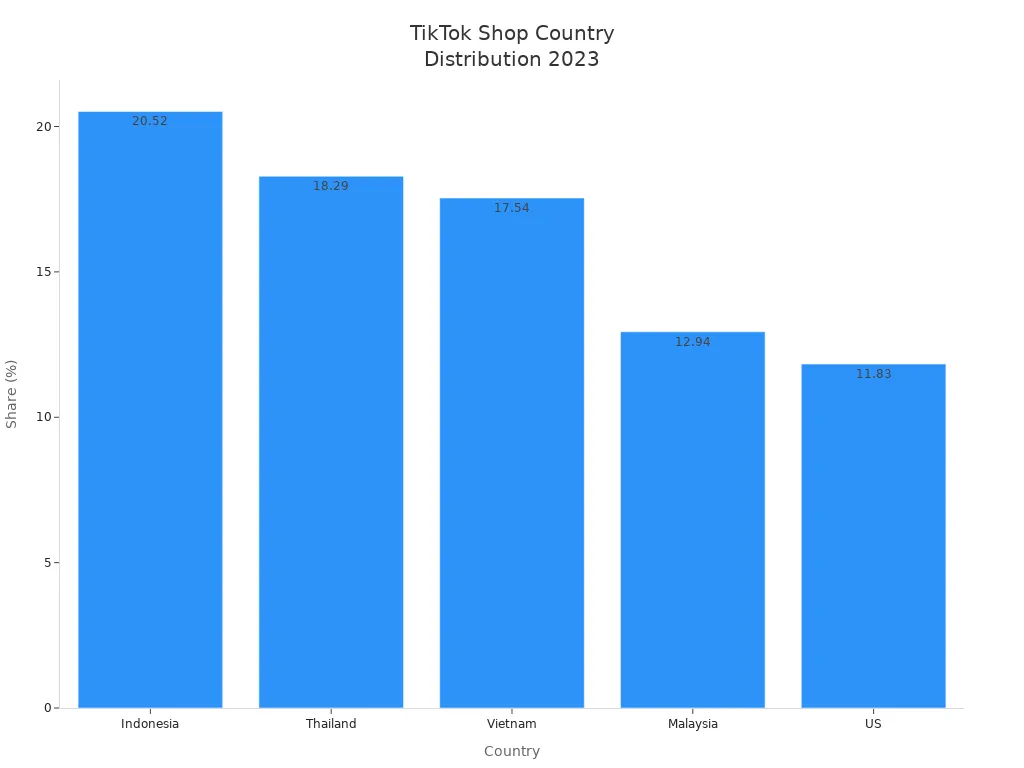
Key Takeaways
Make sure you have a TikTok Business account that is verified. You also need a working Shopify store in a country that is supported before you connect them.
Get the official TikTok app from the Shopify App Store. This app helps you sync products, handle orders, and manage your shop in one spot.
Always update your product listings and inventory. This helps stop overselling and brings in more buyers with shoppable videos.
Connect TikTok Ads Manager to Shopify. You can use it to make ads, see how they do, and help your sales grow.
If you have problems syncing or with orders, look at your product details, warehouse settings, and permissions. Use support tools if you need more help.
Prerequisites
Accounts Needed
You need some accounts and papers before you begin. You cannot use a personal TikTok account for this. Only TikTok Business accounts work with TikTok Shop. You must show business verification documents. These are your business license, ID, Tax Identification Number, proof of address, and a bank account for payments. You also have to verify your TikTok Shop account using TikTok for Business.
To link with Shopify, make sure you have:
A TikTok Business account (not a personal account)
A verified TikTok Shop account for your business
An active Shopify store with a real address in Locations settings
A store location in a country that is supported, like the US, UK, or Germany
A return policy page that people can see on your online store
Products that follow TikTok’s product rules for your area
Tip: If you do not have a TikTok for Business account, you can make one during onboarding.
You must add the TikTok sales channel app from the Shopify App Store. Then, connect your TikTok Shop account to your Shopify product catalog. This step helps you sync your inventory and manage sales in one place.
Permissions & Access
When you link TikTok Shop to Shopify, you must give some permissions. These let Shopify handle your products, orders, and fulfillment on TikTok Shop. When you install the app, you will see prompts to connect your TikTok for Business account. You need to log in and allow Shopify to use your account details.
Follow these steps to give the right access:
Add the official TikTok app from the Shopify App Store.
Connect your TikTok for Business account when asked.
Let Shopify manage your product catalogs, order data, and fulfillment settings.
Link your TikTok Shop to your business account.
Set up product sync so Shopify can update TikTok Shop with your newest products.
Turn on order sync to see TikTok Shop orders in Shopify for fulfillment.
Pick your fulfillment methods and warehouse locations in Shopify.
Shopify needs full access to your product and order data to keep things updated. You must also follow privacy rules like GDPR and CCPA, especially if you run ads or track conversions. Only businesses in supported countries can use this connection. If your country is not supported, you cannot link TikTok Shop to Shopify.
TikTok Shop Integration

Add TikTok App to Shopify
You begin by adding the official TikTok app to Shopify. This step links your shop to TikTok. It helps you manage products and orders together. The TikTok Shopify app is the main bridge for your integration.
Here are the steps to add the TikTok app:
Log in to your Shopify admin dashboard.
Go to Apps and search for the TikTok Shop app.
Find the TikTok logo and check the developer name.
Pick the TikTok Shop app from the results.
Look at the app details and screenshots to learn more.
Click “Add app” and confirm the install.
Wait for Shopify to finish installing the app.
After install, you go to the app’s setup page.
On the setup page, choose “Connect TikTok account.”
Log in to your TikTok For Business account or make one.
Review and accept the app permissions.
Pick the TikTok Shop account to connect to Shopify.
Choose which products or collections to sync.
Set your shipping and return policies to match TikTok’s rules.
Tip: Make sure your TikTok Shop business account is verified. Check your business info before you start the integration.
If you have problems, check your browser for issues. Clear your cache or try reinstalling the app. You can ask TikTok Shop Seller Center live chat or Shopify support for help.
Connect TikTok Shop to Shopify
Connecting TikTok Shop to Shopify gives you strong tools for your shop. The official TikTok app is the main way to link TikTok Shop Seller Center to Shopify. This app lets you sync products, handle orders, and link your TikTok for Business account. You can manage everything from your Shopify dashboard.
The TikTok Shop integration gives you one place to control your shop and products.
You can sync your product catalog and update inventory quickly.
Orders from TikTok Shop show up in Shopify for easy fulfillment.
The integration lets you set up permissions and connect your TikTok Shop Seller Center account.
If you have trouble, check for browser extension problems or use another browser. You can get help in the TikTok Shop Seller Center, Merchant Help Center, or TikTok Shop Discord community.
Note: The TikTok Shop integration focuses on setup and marketing. You do not need to compare other connection methods because the official TikTok app is the main tool.
Link TikTok Ads Manager
You can boost sales by linking TikTok Ads Manager to Shopify. This step helps you run ads, track results, and reach more customers. The TikTok Shop integration makes this easier.
Here is a table that shows the differences between using the TikTok app on Shopify and setting up TikTok Ads Manager manually:
Feature | TikTok App on Shopify (Easy Setup) | Manual Setup via TikTok Ads Manager (Advanced Setup) |
|---|---|---|
Account Requirement | TikTok Business Account | TikTok Business Account |
Shopify Store | Live Shopify store with TikTok app | Live Shopify store, manual pixel code insertion needed |
Pixel Installation | Automatic via TikTok app | Manual: create pixel, copy & paste code |
Product Catalog Sync | Automatic | Optional |
Ad Creation Location | Inside Shopify dashboard | Inside TikTok Ads Manager |
Targeting Options | Basic targeting | Full targeting, audience creation, exclusions |
Creative Control | Use TikTok’s in-app video generator | Use Creative Assistant or product feed |
Analytics & Optimization | Limited analytics | Advanced reporting and conversion tuning |
To link TikTok Ads Manager, follow these steps:
Log in to TikTok Ads Manager with your TikTok Business Account.
Go to Tools, then Events, and pick Web Events.
Click Connect Data Source and choose Web.
Enter your Shopify store URL.
Pick Manual Setup and Manual Connection.
Name your TikTok Pixel and create it.
Copy the pixel code.
In Shopify admin, go to Online Store, then Themes, and pick Actions > Edit Code.
Open the theme.liquid file and paste the pixel code above the closing
tag.
Save your changes.
Create a new campaign in TikTok Ads Manager. Set your goals, budget, ad format, targeting, and optimization.
Upload or make your ad creatives.
Publish your campaign and watch its performance in TikTok Ads Manager.